What is ARIA, and what can it change?
ARIA, Accessible Rich Internet Applications, is a set of HTML attributes defined by the W3C in WAI-ARIA 1.2. It adds or changes what the browser puts in the accessibility tree: the role of an element, its name, and its states and properties. A screen reader reads that tree, so ARIA changes what screen reader users hear.
It changes nothing else. role="button" on a <div> makes a screen reader say “button”, and the <div> still cannot be reached with Tab or pressed with Enter. aria-pressed="true" makes a screen reader say “pressed”, and nothing on the page looks or behaves differently. ARIA is a promise to assistive technology, and you must keep the promise with HTML, CSS and script.
That is why the most common advice about ARIA is to use less of it. Large surveys of home pages find more errors on pages with ARIA than without, because it is easy to add and easy to get wrong. No ARIA is better than bad ARIA.
What are the rules for using ARIA?
The W3C’s notes on using ARIA set out five rules. They are short enough to keep in your head, and most ARIA bugs break one of them.
- Use a native HTML element when one exists. A
<button>beatsrole="button", a<nav>beatsrole="navigation". - Do not change a native element’s meaning unless you must. A heading with
role="button"stops being a heading. - Every interactive ARIA control must work with a keyboard. A role promises the keys that go with it.
- Never hide a focusable element with
aria-hidden="true"orrole="presentation". - Every interactive element needs an accessible name.
What were the broken attributes on the bike page doing?
Nothing at all. role="navbar" is not an ARIA role, and aria-labeled is a misspelling of aria-labelledby, which in any case expects an id, not text. Browsers silently ignore roles and attributes they do not know, so the <nav> kept its built-in navigation role and had no name. The **Checks** view flags both, because nothing else will: no error appears in the console and the page looks the same.
The fix is to remove the role, since <nav> already is a navigation landmark, and to write aria-label="Main". The **Screen reader** view now reads “navigation landmark, Main”. With one <nav> the name is optional; with a header menu and a footer menu, names like Main and Footer let people tell the two apart in the landmarks list.
Typos in ARIA are worth a slow read in every review. aria-labeledby, aria-role, role="buton" and aria-hidden="yes" all fail without any error message.
<!-- before: both ignored -->
<nav role="navbar" aria-labeled="Main">
<!-- after -->
<nav aria-label="Main">
Which states does native HTML not cover?
HTML has states for form controls: checked, disabled, required. It has nothing for a toggle button, a menu that is open, or the current page in a list of links. Those are the cases where ARIA states earn their place, on top of a real <button> or <a>.
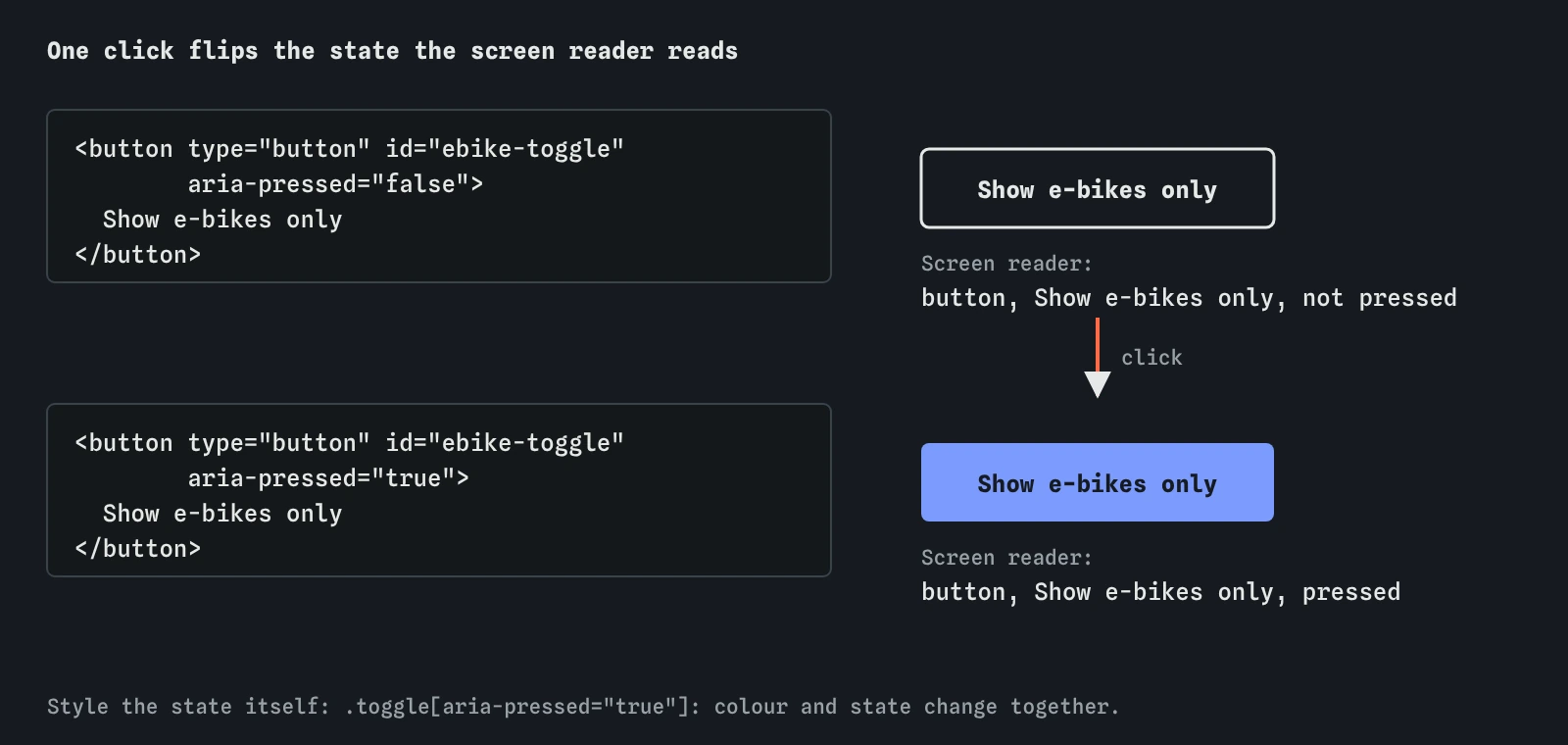
Use aria-pressed for a button that stays on or off, like the e-bike filter: “button, Show e-bikes only, not pressed”. Keep the label the same in both states and let the state change; a label that flips to “Hide e-bikes” while also saying pressed is confusing. Use aria-expanded on a button that shows and hides something, such as a menu or a Show past events section. Use aria-current="page" on the link for the page you are on, and aria-current="step" or "date" for steps and calendars.
In each case, the state must be true at all times. Set the starting value in the HTML and update it in the same script that changes the page.
<button type="button" id="ebike-toggle" aria-pressed="false">Show e-bikes only</button>
<script>
  toggle.setAttribute('aria-pressed', on ? 'true' : 'false');
</script>
Why keep ARIA state and visual state in step?
On the starting page the filter toggles a class called on, which turns the button blue. A sighted person sees the change, and the list gets shorter. A screen reader user hears “button, Show e-bikes only” every time and has to read the whole list to find out whether it is filtered. After the fix, the script sets aria-pressed on the same line that toggles the class.
A neat way to keep them in step is to style the state itself. Replace .toggle.on with .toggle[aria-pressed="true"] in the CSS and drop the class. Now the colour cannot change unless the state changes, and a forgotten line of script shows up as a visual bug that everyone notices. The same works for [aria-expanded="true"] on menu buttons and [aria-current="page"] on navigation links.
When does aria-hidden help, and when does it hurt?
The aria-hidden="true" attribute removes an element and everything inside it from the accessibility tree, while leaving it on screen. It is right for decoration that would be noise if read aloud: an icon next to a text label, a decorative SVG, a red star whose meaning is already given by required.
It hurts when it hides content people need, and it breaks the page when it hides something focusable. A link inside an aria-hidden banner still gets a Tab stop, so keyboard users land on it, and the screen reader says nothing or something odd. The **Checks** view flags this as a focusable element inside a hidden area. To hide content from everyone, use the hidden attribute or display: none; to hide it from screen readers only, make sure nothing inside can take focus.
How do you check ARIA in these views?
In **Checks**, look for roles and attributes that are not real, unnamed controls, and focusable elements inside aria-hidden. These are the mechanical errors.
The **Screen reader** view is where you check state. Read the line for each toggle, menu button and current link, then use the control in the **Page** view and read it again. The state should change in step with what you see. In the **Keyboard** view, every element with an interactive role must be a Tab stop and respond to the keys its role promises. A real screen reader adds detail, such as a toggle being called a “toggle button” in some, but it relies on the same attributes.
What do AI tools get wrong with ARIA?
AI-generated HTML tends to add ARIA everywhere: role="navigation" on a <nav>, role="button" on a <button>, aria-label on a link that already has the same visible text. Most of that is harmless clutter, and some of it causes real problems, like an aria-label that replaces visible link text with something different and breaks voice control.
More serious are invented attributes, roles from desktop app menus such as role="menu" on site navigation, and states set once in the HTML and never updated by the script. Read every ARIA attribute in generated code and ask three questions: is it real, does native HTML already do this, and does the script keep it true.
Field notes
- ARIA changes only what assistive technology hears, never how the page behaves.
- A misspelt role or attribute does nothing at all.
- Use
aria-currentandaria-pressedfor states HTML cannot express. - Update the ARIA state in your script whenever the look changes.
Easy to get wrong
The element already has the role. Repeating it adds nothing and makes code reviews harder, since real ARIA problems get lost in the noise.
A role changes only what is announced. The <div> still cannot be focused or pressed with a keyboard, so the role promises behaviour that is not there.
Hiding a focusable element leaves keyboard users on a control the screen reader cannot describe. Only hide decoration.
A state that never changes is wrong half the time. Update ARIA states in the same code that changes the page.
Questions people ask
Is aria-label always safe to add?
No. It replaces the element’s own name, so on a link or button with visible text it can hide that text from screen readers and break voice commands. Use it for controls with no visible words, like icon buttons.
What is the difference between aria-pressed and aria-checked?
aria-pressed belongs on buttons that toggle. aria-checked belongs on checkboxes, radio buttons and switches. For a plain on or off setting in a form, a native checkbox is usually the right control.
Do I need aria-current if the link is bold?
Yes. Bold text is visual only. aria-current="page" puts the same information into words for screen reader users.
Does ARIA work in every browser and screen reader?
The common roles and states covered here are well supported. Newer or rarer parts of ARIA vary, which is one more reason to prefer native HTML and test with a real screen reader.