What interactive behaviour does HTML give me without a framework?
Several elements ship with keyboard handling, focus management and accessibility already wired up: details with summary for disclosures, dialog for modal and non-modal windows, and the popover attribute for menus, tooltips and toast messages. Buttons can now open dialogs and popovers declaratively through popovertarget and the newer command and commandfor attributes.
Using them saves you code and bugs. A hand-built modal needs focus trapping, Escape to close, a backdrop, inert background content, and focus returning to the trigger when it closes. The dialog element with showModal() does all of that. Each of these elements also gets better as browsers improve, without changes to your code.
The template element belongs here too, although it does nothing on screen. It holds inert markup that scripts clone, and it is the base of declarative shadow DOM.
How do details and summary work?
The details element is a disclosure widget. The summary inside it is the always-visible label, and everything else is hidden until the user activates the summary with a click, Enter or Space. Screen readers announce the summary as a button with expanded or collapsed state.
The summary must be the first child. If it is missing or misplaced, the browser shows its own label, usually "Details" in the user's language. Put headings inside the summary if the label is a heading, such as an FAQ question: <summary><h3>Do you deliver?</h3></summary>. Some screen readers then drop the heading role, so test it if people will navigate that page by headings.
Hidden content inside a closed details is still searchable. Chrome, Edge and Firefox open the element automatically when find-in-page matches text inside it, and search engines index the content. That makes details a good choice for FAQs and long spec lists.
The default triangle marker is a ::marker on the summary. Style it with summary::marker or remove it with list-style: none on the summary. Safari still needs summary::-webkit-details-marker { display: none; } for that.
<details>
  <summary>Do you deliver on Sundays?</summary>
  <p>Yes, within 5 miles of the bakery, between 9am and noon.</p>
</details>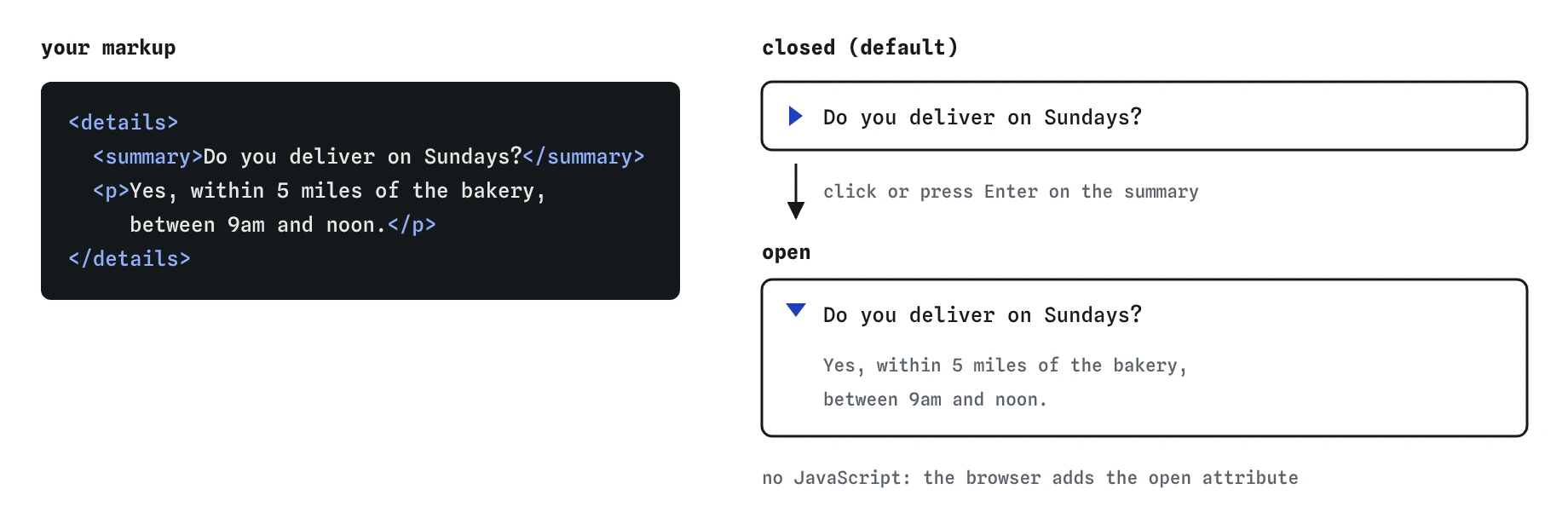

<summary> is the part that always shows and acts as the toggle. Everything else inside <details> stays hidden until someone opens it, with keyboard support built in.How do I control which details are open?
The boolean open attribute reflects the current state. Put it in your HTML to start a panel open. When the user toggles the panel, the browser adds or removes the attribute, and fires a toggle event on the details element that your script can listen to.
Give several details elements the same name attribute and they become an exclusive accordion: opening one closes the others in the group. This works in all current major browsers. Browsers without support fall back to independent panels, which is still usable.
Exclusive accordions trade convenience for control. Users comparing two answers cannot keep both open. Use the name grouping for steps in a short process, and leave FAQs independent so people can open as many as they like.
You can animate the opening with CSS using ::details-content and interpolate-size: allow-keywords in browsers that support them. Treat animation as an enhancement and keep it short, and respect prefers-reduced-motion.
<details name="checkout" open>
  <summary>1. Delivery address</summary>
  …
</details>
<details name="checkout">
  <summary>2. Payment</summary>
  …
</details>
When should I use dialog, and how do I open it?
The dialog element is a window on top of the page. Opened with showModal(), it becomes modal: the rest of the page turns inert so it cannot be clicked or tabbed to, a ::backdrop covers it, focus moves into the dialog, and Escape closes it. Focus returns to the element that opened it when it closes.
Opened with show() or the open attribute, it is non-modal. The page stays usable and there is no backdrop or focus trap. Use that for something like a persistent chat panel. Avoid writing <dialog open> in HTML for modals; it gives you the non-modal version.
Modern browsers also let a button open a modal without script, using commandfor pointing at the dialog's id and command="show-modal". A button with command="close" closes it. These are supported in current Chrome, Edge, Firefox and Safari. Keep a small script fallback if you support older versions.
Inside the dialog, a form with method="dialog" closes it on submit and sets dialog.returnValue to the submitting button's value. That is a neat way to handle confirm and cancel buttons. Add closedby="any" to let a click on the backdrop close the dialog too, where supported.
<button commandfor="confirm-delete" command="show-modal">Delete photo</button>

<dialog id="confirm-delete" aria-labelledby="cd-title">
  <h2 id="cd-title">Delete this photo?</h2>
  <p>This removes it from your album for everyone.</p>
  <form method="dialog">
    <button value="cancel">Cancel</button>
    <button value="delete">Delete</button>
  </form>
</dialog>
What does the popover attribute do?
Adding popover to any element hides it and lets it appear in the top layer, above everything else including elements with high z-index. A button with popovertarget="id" toggles it. No script is needed.
The default popover (same as popover="auto") has light dismiss: clicking outside or pressing Escape closes it, and opening another auto popover closes the first. Use it for menus, pickers and info panels. The popover="manual" value disables light dismiss, which suits toast notifications that close on a timer. The popover="hint" value is meant for tooltips that should not close other open popovers; support for it is still uneven, so check before relying on it.
Popovers are not modal. The page behind stays interactive and focus does not move into the popover automatically, although tabbing from the button goes into it next. If you need to block the page until the user answers, use a modal dialog instead.
Positioning a popover next to its button used to need JavaScript. CSS anchor positioning now handles it in current browsers: the invoking button becomes an implicit anchor, and position-area: bottom places the popover under it.
<button popovertarget="share-menu">Share</button>
<div id="share-menu" popover>
  <a href="mailto:?subject=Bird%20walk">Email</a>
  <button type="button">Copy link</button>
</div>
Do these elements handle accessibility for me?
Mostly, with gaps you still need to fill. The browser gives a summary the button role and expanded state, gives a modal dialog the dialog role and focus handling, and sets aria-expanded on a popovertarget button.
What you still own is naming and content. Give every dialog an accessible name with aria-labelledby pointing at its heading. Put a visible close button in it, because not everyone knows about Escape and touch users have no Escape key. Do not put tabindex on the dialog itself; let the browser move focus to the first focusable element, or add autofocus to the control that should get it first.
A popover used as a menu does not become an ARIA menu, and you should not add role="menu" unless you also implement arrow-key navigation. A plain list of links and buttons in a popover works well with Tab.
What is template for?
The template element holds HTML that the browser parses but does not render, run or load. Images inside it are not fetched and scripts inside it do not execute. Its content property is a document fragment you clone with JavaScript to stamp out repeated items, such as rows in a list of bird sightings.
With shadowrootmode="open", a template becomes declarative shadow DOM: the parser attaches its content as a shadow root to the parent element. Inside that shadow root, a slot element marks where the host's light-DOM children appear. This lets web components render on the server with no JavaScript needed for first paint.
<template id="sighting-row">
  <li><span class="species"></span> <span class="count"></span></li>
</template>
<script>
  const row = document.getElementById("sighting-row").content.cloneNode(true);
  row.querySelector(".species").textContent = "Robin";
  row.querySelector(".count").textContent = "3";
  document.querySelector("#log").append(row);
</script>
How do I test these elements and review AI-written code?
Test with the keyboard first. Tab to each trigger, open it with Enter or Space, check Escape closes it, and check where focus lands afterwards. With a modal open, Tab should cycle inside it and never reach the page behind. In DevTools, open dialogs and popovers show a #top-layer marker in the Elements panel.
When an AI tool writes this kind of UI, it often reaches for a custom JavaScript component out of habit. Look for these:
- A modal built from a
divwithposition: fixed, a hand-written focus trap and an Escape listener. Replace it withdialogandshowModal(). <dialog open>used as a modal, which leaves the page behind fully interactive.- An accordion with
divs and click handlers that toggle a class, wheredetailswould do. summaryplaced after the content, or missing.- Tooltips and dropdowns positioned with a library when
popoverplus anchor positioning would do. - A dialog with no
aria-labelledbyand no visible close button. - Hard-coded
z-index: 9999fights, which the top layer makes unnecessary.
Field notes
- The
detailselement hides content until someone activates itssummarylabel. - Giving several
detailsthe samenamelets only one stay open at a time. - A
dialogopened withshowModal()sits above the page and blocks the content behind it.
Easy to get wrong
summary must be the first child. Otherwise the browser shows a default "Details" label instead.
The open attribute shows a non-modal dialog without focus handling or a backdrop. showModal() gives the full modal behaviour.
popovertarget looks up an id. A matching class does nothing.
A fixed div does not trap focus, make the page inert or close on Escape. The dialog element with showModal() does all three.
Questions people ask
How do I make an accordion in HTML without JavaScript?
Use several details elements with summary labels. Give them the same name attribute if only one should be open at a time.
What is the difference between dialog and popover?
A modal dialog blocks the rest of the page until closed. A popover floats on top but leaves the page usable and closes on outside click.
Does content inside details get indexed by search engines?
Yes. It is in the HTML source, so crawlers read it even when it is collapsed.
Can I open a dialog without JavaScript?
Yes, in current browsers. A button with commandfor set to the dialog's id and command="show-modal" opens it as a modal. For older browsers, keep a short script that calls showModal().
Does content inside a closed details element get indexed?
Yes. Search engines read it, and find-in-page opens the element when it matches text inside.