Why serve more than one image file?
A 2400-pixel photo looks sharp on a large monitor and wastes several megabytes on a phone with a 390-pixel-wide screen. A 400-pixel photo loads fast and looks blurry on a high-density laptop. Responsive images let you list several versions and let the browser choose, based on the layout width, the device pixel ratio, and sometimes the user's data-saving settings.
You keep src as the fallback. Browsers that understand srcset use it; anything else uses src. Every current browser supports srcset, sizes and <picture>, so the fallback is mostly for crawlers and very old tools.
Images are often the largest part of a page's weight. Getting this right is usually the single biggest speed gain on a photo-heavy site such as a portfolio or a recipe blog.
When do you use x descriptors?
Use x descriptors when the image always displays at the same CSS size, like a logo, an avatar or a fixed-size icon. Each candidate is a URL followed by a pixel density. The browser picks the one that matches the device pixel ratio: 2x on most phones and Retina laptops, 3x on many newer phones. A candidate without a descriptor counts as 1x.
There is rarely a reason to go beyond 2x for photos. At 3x the file is more than twice the size of 2x, and most people cannot see the difference at normal viewing distance. For small logos with fine lines, a 3x version or an SVG is worth it.
<img src="avatar-96.jpg"
     srcset="avatar-96.jpg 1x, avatar-192.jpg 2x"
     alt="Mira Chen, head baker" width="96" height="96">
How do w descriptors and sizes work together?
When the display size changes with the layout, use w descriptors. Each one states the file's real width in pixels, for example photo-800.jpg 800w. On their own they are not enough, because the browser chooses the file while parsing the HTML, before CSS has worked out the layout. The sizes attribute tells the browser how wide the image will be displayed.
The sizes attribute is a comma-separated list of media conditions and lengths. The browser uses the first condition that matches, and the last entry, without a condition, is the default. It multiplies that width by the device pixel ratio and picks the smallest candidate that is large enough. If you leave sizes out, the browser assumes 100vw, which makes it download images far larger than needed for anything in a column or grid.
Worked example: on a 390-pixel phone at 3x, sizes resolves to 100vw, so the browser wants 1170 pixels and fetches the 1600w file. On a 1440-pixel desktop at 1x, it resolves to 600px and fetches the 800w file. Browsers may also pick a smaller file on a slow connection or keep using a larger one already in the cache.
<img src="bread-800.jpg"
     srcset="bread-400.jpg 400w, bread-800.jpg 800w, bread-1600.jpg 1600w"
     sizes="(min-width: 960px) 600px, 100vw"
     alt="Seeded rye loaf on a cooling rack" width="1600" height="1067">
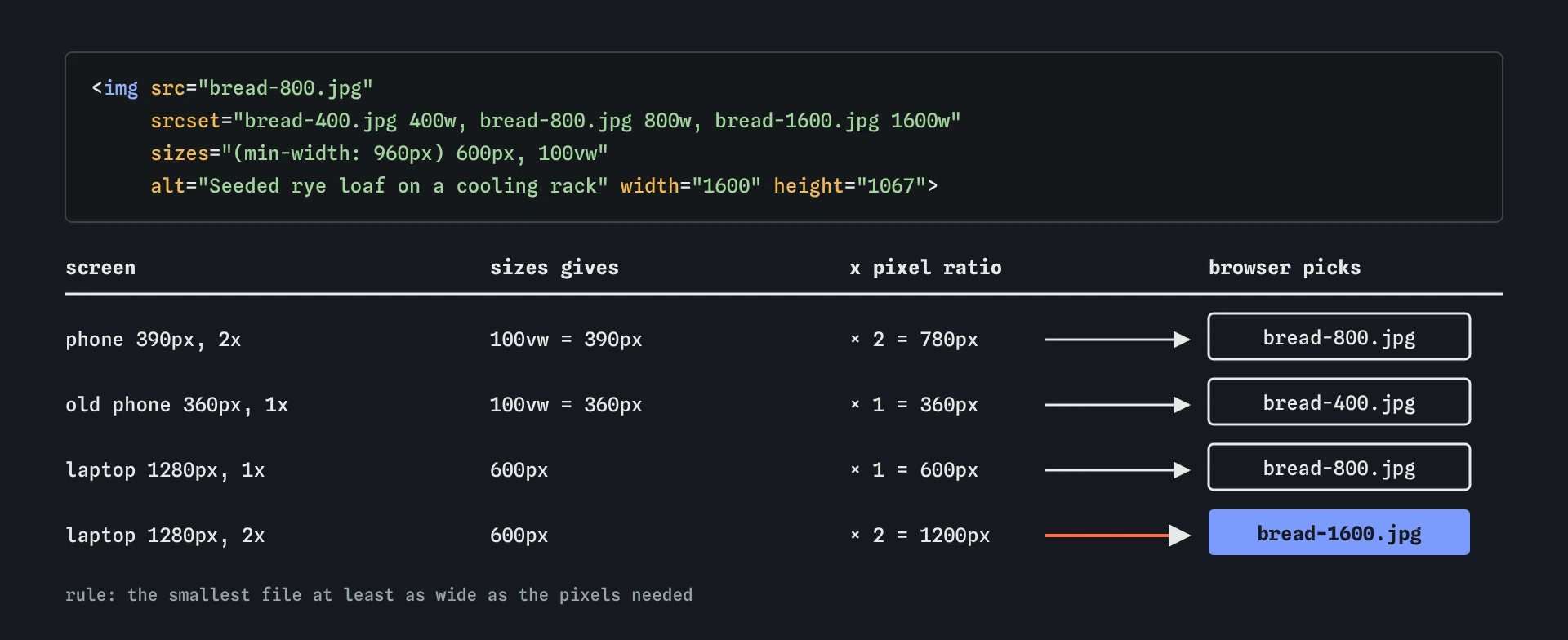
sizes to learn how wide the loaf will display, multiplies by the screen's pixel ratio, then takes the smallest file in srcset that covers it. The same tag sends a phone and a laptop different files.How do you write a sizes value that matches your CSS?
Read your CSS breakpoints and describe the image width at each one. If a gallery shows one column on phones, two from 600 pixels and three from 1024 pixels inside a 1200-pixel max-width container with 16-pixel gaps, the honest value is close to (min-width: 1024px) 384px, (min-width: 600px) 50vw, 100vw.
Lengths in sizes can be px, vw, em or calc(), but not percentages, because the browser does not know the container yet. A value that is a little too large wastes some bytes; a value that is too small makes images blurry. When in doubt, round up.
The newer sizes="auto" value works with loading="lazy". Since a lazy image is fetched after layout, the browser can measure the real width. It is supported in Chromium-based browsers and ignored elsewhere, so pair it with a real fallback: sizes="auto, (min-width: 960px) 600px, 100vw".
<img loading="lazy"
     sizes="auto, (min-width: 1024px) 384px, (min-width: 600px) 50vw, 100vw"
     srcset="cake-400.jpg 400w, cake-800.jpg 800w" src="cake-800.jpg"
     alt="Lemon drizzle slice" width="800" height="600">
What is the picture element for?
The <picture> element wraps zero or more <source> elements followed by one <img>. The browser checks each <source> in order and uses the first one that matches its type and media. The <img> is required and must come last. It supplies the alt text, the dimensions and the fallback file, and it is the element that is actually displayed and styled. Style the <img>, never the <picture> wrapper.
Use <picture> for two jobs: switching formats and art direction. For plain resolution switching, srcset and sizes on an ordinary <img> are enough and easier to maintain. Once a <source> is chosen, the browser does not fall back to later sources if that file fails to load, so make sure every listed URL exists.
How do you offer AVIF and WebP with a fallback?
Add a <source> with a type attribute for each modern format, most efficient first. The browser skips any type it cannot decode without downloading the file. Each <source> can carry its own srcset and sizes, so you get format switching and resolution switching together.
AVIF and WebP are supported in all current major browsers, so the JPEG fallback now mainly serves old devices and some email clients. Keep it anyway; it costs nothing for modern browsers. Image CDNs can also do this server-side by reading the Accept request header, in which case a single <img> with srcset is enough.
<picture>
  <source type="image/avif" srcset="loaf-800.avif 800w, loaf-1600.avif 1600w" sizes="(min-width: 960px) 600px, 100vw">
  <source type="image/webp" srcset="loaf-800.webp 800w, loaf-1600.webp 1600w" sizes="(min-width: 960px) 600px, 100vw">
  <img src="loaf-800.jpg" srcset="loaf-800.jpg 800w, loaf-1600.jpg 1600w" sizes="(min-width: 960px) 600px, 100vw" alt="Sourdough loaf with a deep ear" width="1600" height="1067">
</picture>
What is art direction?
Art direction means showing a different crop or composition at different widths. A wide banner of a market stall reads well on a desktop, but on a phone the baker in the middle becomes a speck. With media on a <source>, you serve a tight portrait crop to narrow screens.
When the crops have different aspect ratios, put width and height on each <source> as well as on the <img>. Browsers use the matching source's dimensions to reserve space, which prevents layout shift for every crop. Keep the alt text accurate for every version; there is only one alt, on the <img>, so the crops should show the same subject.
Use media for art direction only. If the images are the same picture at different resolutions, sizes is the right tool, because media forces a choice the browser cannot override for data saving or caching.
<picture>
  <source media="(max-width: 599px)" srcset="stall-portrait.jpg" width="600" height="800">
  <img src="stall-wide.jpg" alt="Baker handing a loaf across the market stall" width="1600" height="600">
</picture>
How do you check which file the browser picked?
In DevTools, select the <img> in the Elements panel and read its currentSrc property in the console with $0.currentSrc. That shows the file actually used. The Network panel shows which candidate downloaded; resize the window and reload with the cache disabled to see the choice change.
Use device emulation to test different pixel ratios. Remember that browsers keep using a larger cached image when you shrink the window, so a test that starts large and gets smaller will look wrong. Lighthouse reports "Properly size images" when the downloaded file is much bigger than the displayed size, which usually means sizes is missing or too generous.
What do AI tools get wrong with responsive images?
The most common error in AI-generated markup is srcset with w descriptors and no sizes. It validates, but every image is treated as full viewport width and phones download the biggest file. Another is mixing x and w descriptors in the same srcset, which is invalid and makes the browser drop candidates.
Also check that the listed files really exist at those widths, that <img> comes last inside <picture>, that type values are real MIME types such as image/avif, and that media is not being used where sizes belongs. Models often put alt on <source>, where it does nothing.
Field notes
- Large images waste data on small screens, and small ones look blurry on big ones.
- Use x descriptors like
2xfor images shown at one fixed size. - Use w descriptors with
sizeswhen the display width changes. - The
<picture>element lets you choose between sources.
Easy to get wrong
Without sizes the browser assumes 100vw and fetches oversized files for images in columns or grids.
Mixing descriptor types is invalid, and the browser ignores candidates it cannot interpret.
The browser stops at the <img>, so sources after it are never considered.
The picture element is a plain inline wrapper. The img inside is what is laid out and painted.
Questions people ask
Do I need picture just to serve WebP?
If your image CDN negotiates the format from the Accept header, no. If you host static files, <picture> with a typed <source> is the reliable way.
How many widths should I generate?
Three to five widths, for example 400, 800, 1200 and 1600, cover most layouts. More candidates give diminishing returns and more files to manage.
Does srcset work with lazy loading?
Yes. loading="lazy" combines with srcset and sizes. It is also what makes sizes="auto" possible.
Can I use srcset on CSS backgrounds?
CSS has image-set() for that, which takes x-style resolutions and types. It does not have an equivalent to sizes.
Why did the browser pick a bigger file than I expected?
It may already have that file cached, or the device pixel ratio may be higher than you assumed. Check currentSrc and the emulated DPR in DevTools.