How do you change the text of an element?
Set its textContent property. heading.textContent = "Fresh at 7am"; replaces everything inside the element with that text. Reading textContent gives you all the text inside, including the text of child elements, with tags removed.
Assigning replaces children too. If a paragraph contained a <strong> and a link, setting its textContent wipes them out and leaves one plain text node. To change only part of an element, give that part its own element, such as <span class="count">, and change the span.
Any value you assign is turned into a string, so count.textContent = 3 shows 3. An object shows as [object Object], which usually means you meant to read one of its properties. You will also see innerText in older code. It respects CSS and is slower; textContent is the standard choice.
const heading = document.querySelector("h1");
heading.textContent = "Fresh at 7am";
console.log(heading.textContent);
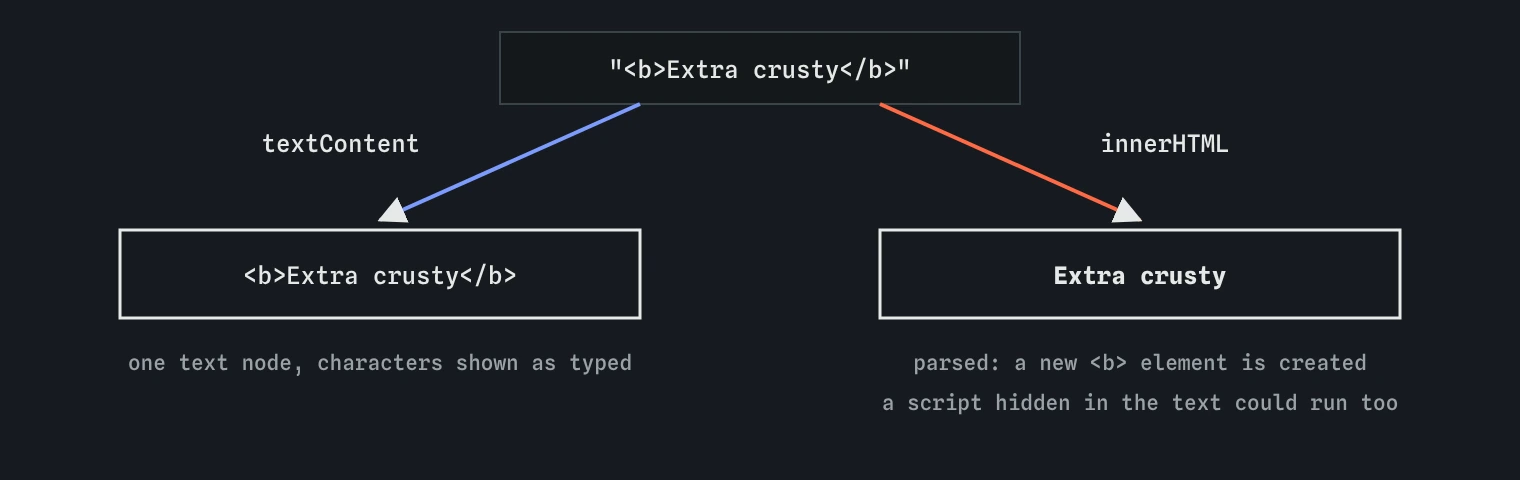
textContent puts the characters on the page as they are. innerHTML reads them as HTML and builds elements, which is why it must never receive text a visitor typed.What does innerHTML do differently?
innerHTML treats the string as HTML. The browser parses it and builds real elements, so box.innerHTML = "<em>Rye</em>" creates an italic element. Reading innerHTML gives you the markup inside an element as a string.
That makes it handy for inserting a chunk of markup you wrote yourself. It is also slower, because the browser has to parse text and throw away and rebuild every child. Event listeners attached to old children are lost, and any form field inside loses what the visitor typed.
The bigger issue is safety, covered next. A useful rule of thumb: use textContent whenever the content is text, and reach for innerHTML only for fixed markup that lives in your own code.
const box = document.querySelector("#preview");
box.innerHTML = "<em>Rye</em> is back";
console.log(box.querySelector("em").textContent);
Why is innerHTML with user input dangerous?
If text from a visitor goes into innerHTML, the visitor is writing part of your page's HTML. A harmless visitor types <b> and gets bold text. A hostile one types something like <img src=x onerror="...">, and the code inside that attribute runs on your page as if you wrote it.
This attack is called cross-site scripting, or XSS. The injected script can read what is on the page, send the visitor's data elsewhere, or act as the logged-in user. It becomes serious when the text is saved and shown to other people: a review, a comment, a display name. One bad entry then attacks every reader.
textContent closes the hole completely, because the browser never parses the text as HTML. Treat these as user input: form fields, the URL and its query string, localStorage, and data from any server you do not control. AI tools reach for innerHTML with template literals often, so this is one of the first things to check in generated code.
const typed = '<img src="x" alt="">';
const safe = document.querySelector("#preview");
safe.textContent = typed;
console.log(safe.querySelector("img")); // null: shown as text
How do you set attributes?
Most standard attributes are also properties on the element. link.href = "/menu", img.src = "rye.jpg", img.alt = "Rye loaf", input.disabled = true. Properties are the usual way: they are short and use proper types, so disabled takes a boolean.
setAttribute(name, value) works for any attribute, including ones with no matching property, such as aria-expanded. getAttribute(name) reads the value as written in the HTML. There is one difference to know: link.href gives the full resolved address, like https://example.com/menu, while getAttribute("href") gives /menu. removeAttribute(name) deletes it.
Neither method checks spelling. setAttribute("herf", ...) adds a useless attribute and a misspelt property creates a plain JavaScript property. Turn on the Changes lens to confirm the attribute you meant actually changed.
const link = document.querySelector("#menu-link");
link.href = "/menu";
link.setAttribute("aria-label", "Full bread menu");
console.log(link.getAttribute("href"));
How do data attributes and dataset work?
Attributes that start with data- are yours to invent. They store small facts on an element, such as <li data-id="rye" data-price="4.50">. The browser ignores them and CSS can select them, which makes them a tidy place to keep the id your script needs when someone clicks.
JavaScript reads them through element.dataset. The data- prefix is dropped and dashed names become camelCase, so data-bake-time is dataset.bakeTime. Setting dataset.soldOut = "yes" adds data-sold-out="yes" to the HTML.
Values in dataset are always strings. dataset.price is "4.50", so convert it with Number before doing maths. Keep data attributes for small identifiers; large data belongs in JavaScript variables.
const link = document.querySelector("#menu-link");
link.dataset.section = "breads";
console.log(link.dataset.section);
console.log(link.getAttribute("data-section"));
How do you show and hide an element?
The hidden attribute hides an element, and the matching property is a boolean. notice.hidden = true hides it; notice.hidden = false shows it. It works with no CSS at all, and assistive technology skips hidden elements too, which is what you want for content that is not there yet.
One catch: a CSS rule that sets display on the element overrides hidden, because hidden is a default style of the lowest priority. If an element refuses to hide, look for display: flex or display: block on it and add [hidden] { display: none; } to your CSS.
Assign real booleans. notice.hidden = "false" is a non-empty string, which counts as true, so the element stays hidden. Writing the condition directly, notice.hidden = stock > 0, is shortest and correct.
const stock = 0;
const soldOut = document.querySelector("#sold-out");
soldOut.hidden = stock > 0;
console.log(soldOut.hidden); // false: the notice shows
How do you read and set input values?
Form fields hold what the visitor typed in their value property, and it is always a string, even in a number field. textContent of an input is always empty, because an input has no children. Reading .value once gives the value at that moment; to react while someone types, you need events, covered later.
Setting value changes what is in the box. Use it to fill a field with a saved draft, or to clear a field after submitting. Checkboxes and radio buttons use checked, a boolean, and a <select> exposes the chosen option's value through its own value.
The value attribute in the HTML is only the starting value. After the visitor types, input.value and input.getAttribute("value") disagree. The property is the current state; that is the one your script almost always wants.
const note = document.querySelector("#note");
console.log(note.value);
note.value = "Sliced, please";
console.log(note.getAttribute("value")); // still the starting text
How do you update a list safely?
Lists of things, such as breads, birds or to-do items, usually come from an array. The safe pattern: clear the list with list.textContent = "", then for each item create an <li>, set its textContent, and append it. The lesson on creating elements covers createElement fully; it is shown here because it is the safe alternative to building HTML strings.
Template literals with innerHTML are shorter, and they are fine when every value is trusted: numbers you computed, or text written in your own code. The moment one value comes from a visitor or an outside server, switch to textContent for that value.
When you review AI-generated code, look for innerHTML with ${...} inside. Ask where each value comes from. If any could have been typed by someone, rewrite that part with createElement and textContent.
const breads = ["Rye", "Spelt", "<i>Sourdough</i>"];
const list = document.createElement("ul");
breads.forEach((name) => {
  const li = document.createElement("li");
  li.textContent = name;
  list.append(li);
});
document.querySelector("main").append(list);
Field notes
- Setting
textContentreplaces an element's content with plain text. innerHTMLreads the string as HTML and builds real elements from it.- Putting a visitor's text into
innerHTMLlets them write part of your page. - An input's
valueholds what was typed, always as a string.
Easy to get wrong
Anything the visitor types becomes HTML, so a hidden script could run. textContent keeps it as plain characters.
The string "false" is truthy, so the element stays hidden. hidden needs a real boolean.
An input's typed text lives in value. Its textContent is always an empty string.
dataset values are strings. Multiplication happens to convert them, and + would join them as text. Convert explicitly so the code is clear.
Questions people ask
Is innerHTML ever safe?
Yes, with fixed markup from your own code or values you computed yourself. It is the visitor's text, or data from servers you do not control, that must never reach it.
What is the difference between textContent and innerText?
innerText follows CSS, skips hidden text and triggers layout, so it is slower. textContent reads and writes raw text and is the usual choice.
Should I use setAttribute or the property?
Use the property for standard attributes like href, src, alt and disabled. Use setAttribute for aria-* and other attributes without a property.
Why does link.href show a full URL?
The property gives the resolved address. Use getAttribute("href") to see exactly what is written in the HTML.
Does changing content reload the page?
No. The browser updates only the changed part of the DOM and redraws it. Reloading rebuilds the page from the original HTML, so your changes vanish.