What does a calm debugging method look like?
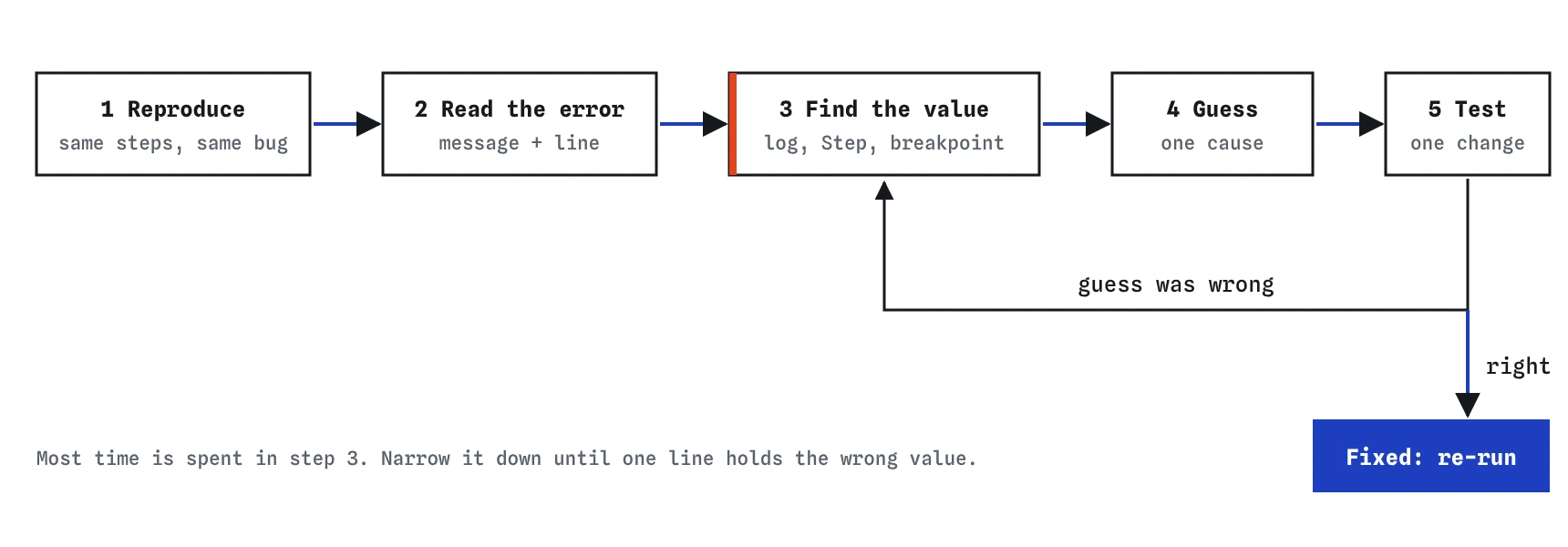
Bugs feel random when you poke at them. They stop feeling random once you follow the same five steps every time: reproduce the bug, read the error, find where a value goes wrong, form one guess, and test that guess. The steps are small and boring on purpose. A boring method beats a clever hunch, because it works on the bugs you have never seen before.
Reproducing means you can make the bug happen on demand. Write down the exact steps: "type 4 in Loaves, click Work out total." If you cannot reproduce it, you cannot tell whether a fix worked. Bugs that only happen sometimes usually depend on something you have not written down yet, such as an empty field, a slow network response or the order of two clicks.
Reading the error comes next, and most beginners skip it. The browser tells you the kind of problem, the message and the line. Then you narrow down: somewhere between the input and the screen, a value stops being what you expected. Your job is to find the first line where it is wrong. Only then do you guess a cause, change one thing, and run the steps again.
- Reproduce: write the exact steps that make the bug appear.
- Read: the error name, message and line number.
- Locate: the first line where a value is not what you expected.
- Guess: one specific cause you can test.
- Test: change one thing, repeat the steps, and compare.

How do you read a JavaScript error message?
An error has three useful parts. The name says what kind of problem it is, the message says what went wrong, and the location says where. In the demo, clicking the button gives TypeError: total.toFixed is not a function. Read it slowly: JavaScript tried to call toFixed on total, and the value in total has no such method. Numbers have toFixed; strings do not. That one sentence already tells you total is not a number.
The common names are worth knowing by sight. A ReferenceError means a name does not exist at all, often a typo such as ouput instead of output, or using a variable outside its block. A TypeError means the name exists but holds the wrong kind of value for what you did with it, like calling a method on null or undefined. A SyntaxError means the code could not even be read, usually a missing bracket or quote, and nothing in the file runs.
PlainFinch's Console panel explains each error in plain words and links to the line. In a real browser, open DevTools with F12 (or Cmd+Option+I on a Mac) and look at the Console tab. Click the file name on the right of the error to jump to the line. The line it points at is where the program noticed the problem, which is sometimes a few lines after the real mistake.
// TypeError: total.toFixed is not a function
// The value in total is a string, and strings have no toFixed.
console.log(typeof total); // "string"
How do you find where a value goes wrong?
Most debugging time goes here. The program takes some input, passes it through several lines, and shows a result. Somewhere along that path a value turns into something you did not expect. Check the values in order, from the input towards the output, and stop at the first one that looks wrong. The bug is on that line or just before it.
Labelled logs are the fastest tool. Write console.log("qty:", qty) with a label and a comma, so the Console shows the name next to the value and keeps its type. Strings and numbers can look identical in a page, so log typeof too when you suspect a type problem. In the demo, logging delivery and total shows "2.50" and "2.5014", and the glued digits give the game away.
Log objects and arrays as they are, without joining them into a string: console.log("order:", order) lets you expand the object. If you write "order: " + order you get order: [object Object] and learn nothing. Remove the logs once the bug is fixed; a Console full of old messages hides the next problem.
const qty = qtyInput.value;
const delivery = deliveryInput.value;
console.log("qty:", qty, typeof qty);
console.log("delivery:", delivery, typeof delivery);
const total = delivery + qty * price;
console.log("total:", total);
How do the Step lens and Console help in PlainFinch?
The Step lens runs your code one line at a time and shows every variable's value beside the code. Use it when you are not sure which line to log. Click through the demo with Step on and watch delivery: it shows with quotes, which means a string. On the next line, total appears as "2.5014" and you have found the first wrong value without writing a single log.
The Console panel sits under the page. It shows your console.log output in order, explains errors in plain words, and warns about things that are legal but suspicious, such as a form trying to reload the page. The Events lens is useful when nothing happens at all: it lists every click and key press and which function responded. If your click shows no listener, the bug is in the wiring, perhaps a selector that matched nothing, and you can stop staring at the maths inside the handler.
If your code loops forever, PlainFinch stops it after 1.5 seconds and says so. That message is a clue too: look for a loop whose condition never becomes false.
How do breakpoints and the debugger statement work in a real browser?
Outside PlainFinch, the browser's own tool for stepping is the Sources panel in DevTools. Open it, find your script in the file list on the left, and click a line number. A blue marker appears; that is a breakpoint. The next time the code reaches that line, everything pauses. Hover over any variable to see its value, or read them all in the Scope section on the right.
While paused, the buttons at the top let you step over the next line, step into a function call, or resume until the next breakpoint. The Console still works while paused, and it runs in the paused scope, so you can type qty * price and see the answer with the real values. That is often faster than adding a log and reloading.
The debugger statement is a breakpoint written in code. Put debugger; on a line and the browser pauses there whenever DevTools is open. It does nothing when DevTools is closed. It is handy inside event handlers or code that runs once on load, where clicking a line number in time is awkward. Delete it before you publish, and search your files for it before a release.
button.addEventListener("click", () => {
  const qty = Number(qtyInput.value);
  debugger; // pauses here while DevTools is open
  const total = qty * price;
});
Which bugs show up again and again?
A small set of mistakes causes most beginner bugs, and AI-written code makes the same ones. Learn to recognise them and you will often spot the cause from the symptom alone.
- Typos in names:
ouputinstead ofoutputgives a ReferenceError. A typo in a property, such astextcontent, gives no error at all and does nothing. nullfromquerySelector: the selector matched nothing, often a missing#or., a misspelt id, or a script that ran before the element existed. The error readsCannot read properties of null.=instead of===:if (bird = "Wren")assigns, and the condition is always truthy for a non-empty string.- Off-by-one:
i <= items.lengthruns one pass too many, because the last index islength - 1. - Forgetting
return: the function builds the right value and throws it away, and the caller receivesundefined. - Async code finishing later than you expect: data from
fetchor a timer is not ready on the next line, so a log there shows a Promise or the old value. - String vs number: form fields and
localStoragealways give strings, so+joins them. Convert withNumber()first.
Why does async code confuse your logs?
Code that waits, such as fetch, setTimeout or anything with await, finishes after the lines below it have already run. If you log a variable straight after starting a request, you see the value from before the request, or a pending Promise. The order of messages in the Console then looks wrong, and it is easy to conclude that the data never arrived.
Put the log where the data actually exists: after the await, or inside the .then callback. Number your labels ("1 before fetch", "2 got data") and the Console shows the true order. If you see Promise {<pending>}, a missing await is the usual cause.
async function loadBirds() {
  console.log("1 asking");
  const response = await fetch("/api/birds");
  const birds = await response.json();
  console.log("2 got", birds.length, "birds");
}
loadBirds();
console.log("3 this prints before 2");
What is rubber-duck debugging, and why does it work?
Rubber-duck debugging means explaining your code, line by line, out loud, to someone who knows nothing about it. A rubber duck on the desk is the traditional listener. The trick works because explaining forces you to say what each line actually does, and the bug usually sits where what you say and what the code says stop matching. "Here I add the delivery to the total" is the moment you notice the delivery is still text.
You can do the same with an AI assistant, and it helps to be specific. Paste the smallest piece of code that shows the bug, the exact error text, what you expected and what happened. Ask it to explain the cause before it rewrites anything, then check its explanation against the values you logged. An AI can guess wrongly with total confidence, so treat its answer as one more guess to test with step 5.
How do you know the fix really worked?
Run the exact reproduction steps from step 1 again and confirm the bug is gone. Then try the cases around it: an empty field, zero, a large number, the button clicked twice. A fix that only works for the one value you tested often moves the bug somewhere else.
Change one thing at a time. If you change three lines and the bug disappears, you do not know which change mattered, and the other two may have introduced new problems. Finally, clean up: delete the debugging logs and any debugger statements, and read the diff once before you move on.
Field notes
- Reproduce the bug, read the error, find the bad value, test one guess, then check the fix.
- An error message gives a name, a description and a location.
- Log values along the path to see where one turns into something unexpected.
- After fixing, repeat the original steps and try nearby cases.
Easy to get wrong
Input values are strings. + with a string joins text, so 2.50 delivery and 14 for loaves becomes "2.5014". Convert first.
Unlabelled logs are hard to match to variables once there are several. A label also shows you an empty string, which is otherwise an invisible blank line.
One equals sign assigns. The condition then tests the assigned value, which is truthy, so the branch always runs.
Joining an object into a string prints [object Object]. Passing it as a separate argument lets you expand and read it.
Questions people ask
Should I use console.log or breakpoints?
Use logs for a quick look at one or two values and for code that runs many times, where you want a history. Use breakpoints when you need to see many variables at once or step through a tricky function. Both are normal; experienced developers switch between them all day.
The error points at a line that looks fine. Why?
The line in the error is where JavaScript noticed the problem. The cause is often earlier, where a value was set wrongly. Follow that value backwards to where it was created.
Why is there no error, yet nothing happens?
Silent failures are usually a selector that matched a different element, a misspelt property name, or a listener on the wrong event. Open the Events lens to check the listener runs, then log inside it.
Do I need to remove console.log before publishing?
Remove debugging logs. They clutter the console for anyone using DevTools and can leak data you did not mean to show. Logging real errors with console.error in a catch block is fine to keep.
Can I ask an AI to find the bug for me?
Yes, and give it the error text, the smallest code that shows the problem, and what you expected. Ask for the cause first. Then confirm the cause with a log before accepting the fix.